In January 2026, we introduced a new backup method for Anchor Mobile. This new method utilizes a 12 word phrase that will be the backup phrase for the the initial account it's created with, as well as all subsequent created accounts. With this 12 word phrase, you will be able to recover all accounts created on this device.
This guide will walk you through the initial creation of the phrase and it's verification. You can learn how to recover your account with this phrase in a separate guide found here.
| Step 1 Create Account and Pass Phrase Once you complete the account creation process, you'll see a request to backup your account, which is how it appeared before. However, the process diverges after this. By the way, if you have questions about the creation process, it is all explained in greater detail in our Account Creation Guide for Anchor Android.
To proceed, press “Backup account” | 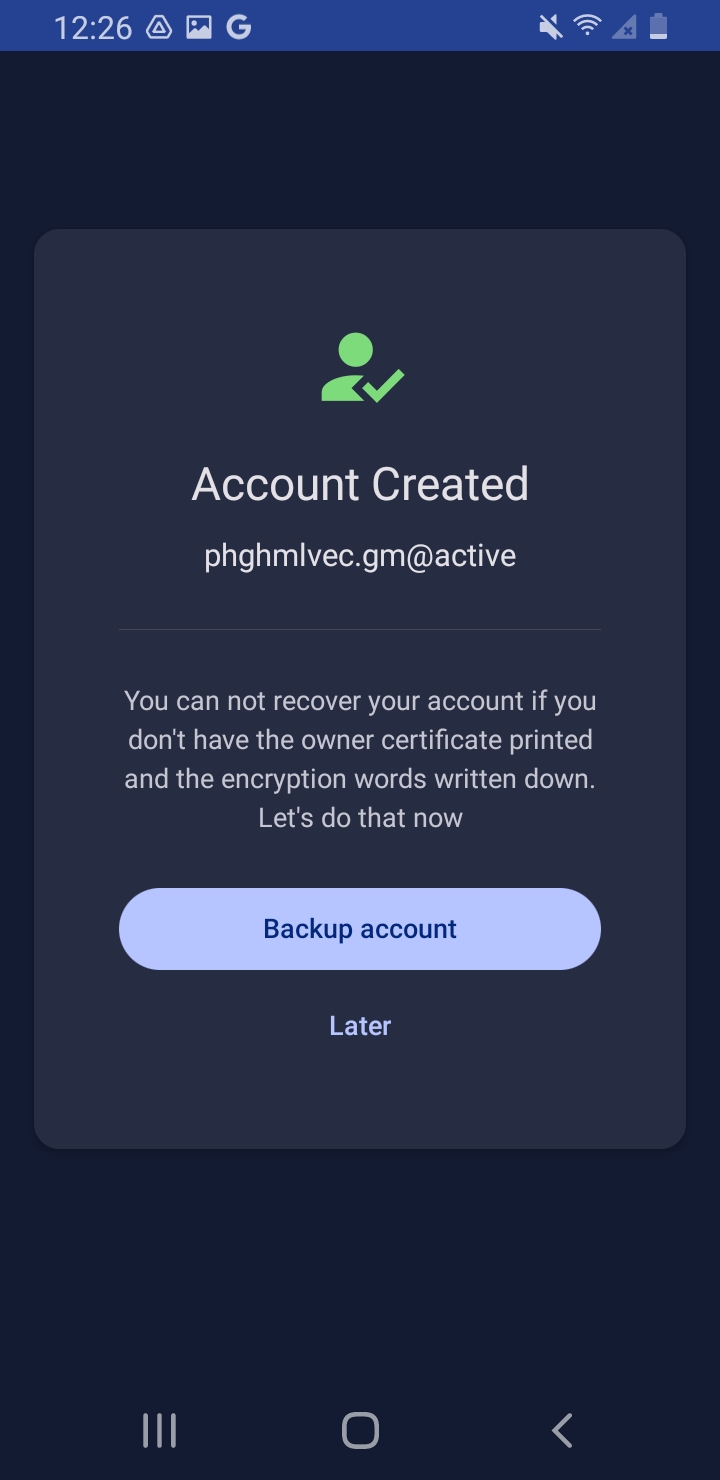 |
Step 2Backup with Recovery PhraseOn the next page, you'll be asked to record the phrase, so have a pen and paper or text document ready to go. Press "Continue" to proceed. | 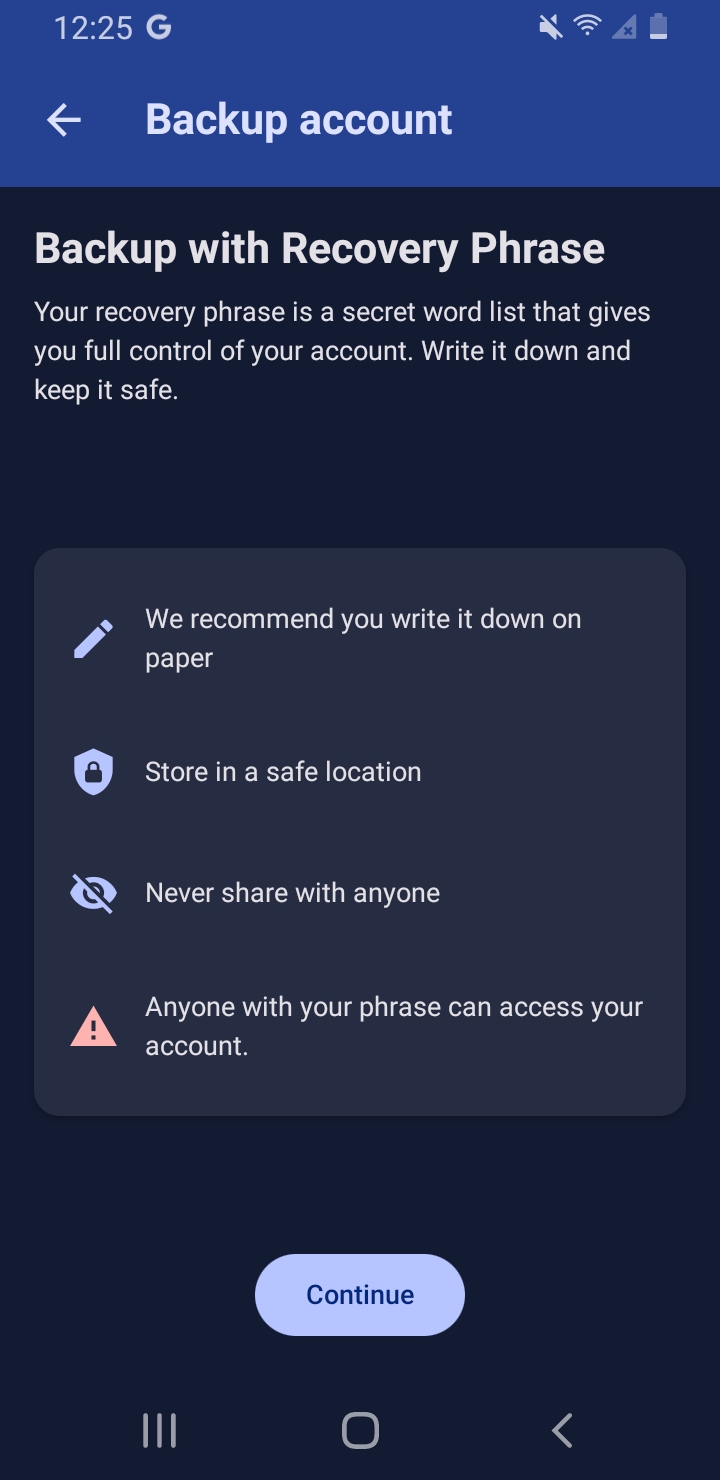 |
| Step3 Record the Pass Phrase Here you can see the pass phrase. Once you have it written down, double check that you have each word spelled correctly. Once you are ready, press "I have written it down" to continue | 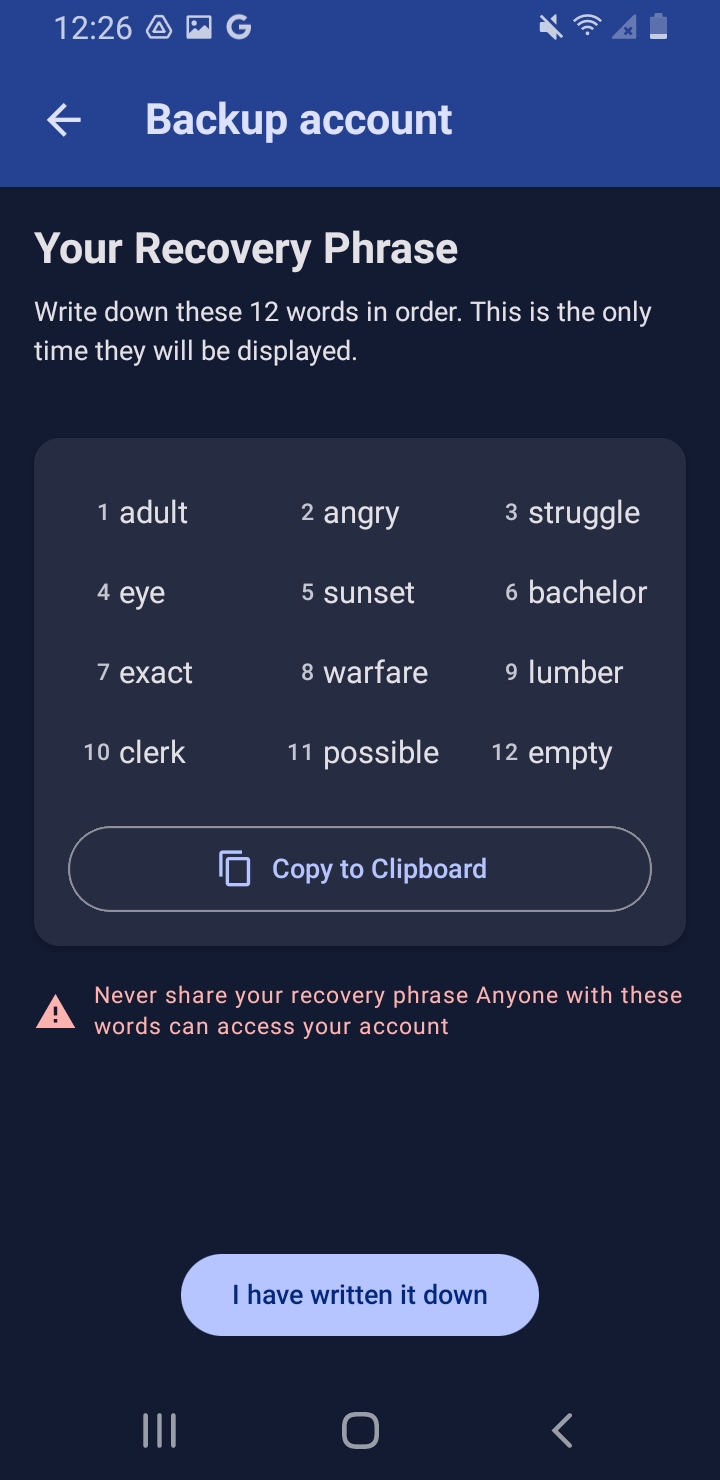 |
| Step 4 Verify Pass Phrase On this page, you'll be required to recall three of the 12 words. Find the corresponding word from your recorded list and select it.
Once you have done so, select “Verify” to advance. | 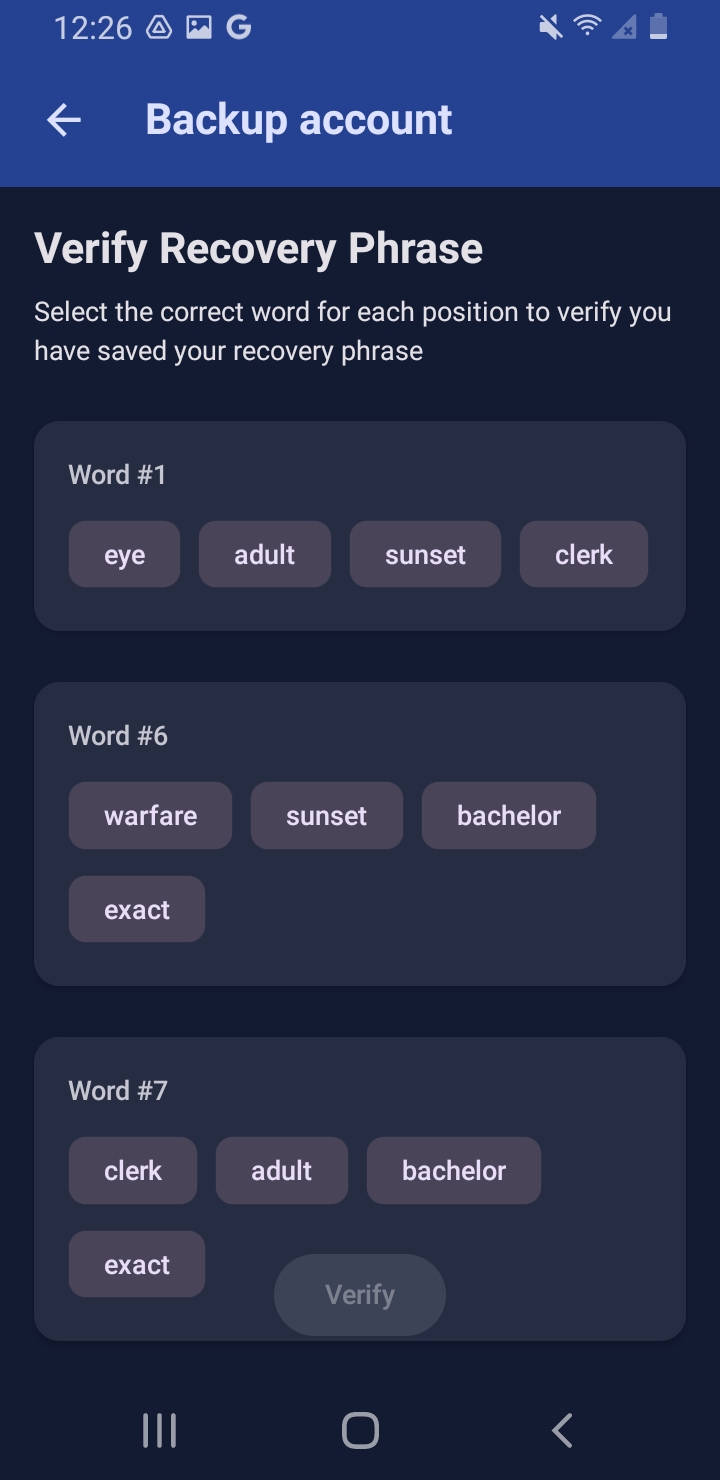 |
| Step 5 Backup Complete At this point, your backup is now complete and you are good to go. With this phrase, you can use the Account Recovery process to recover the original account it was created with, as well as any accounts you created after that. Again, please keep this phrase safe and do not lose it. Without it, you will be unable to recover your account. To return to the Accounts page, press “Done” | 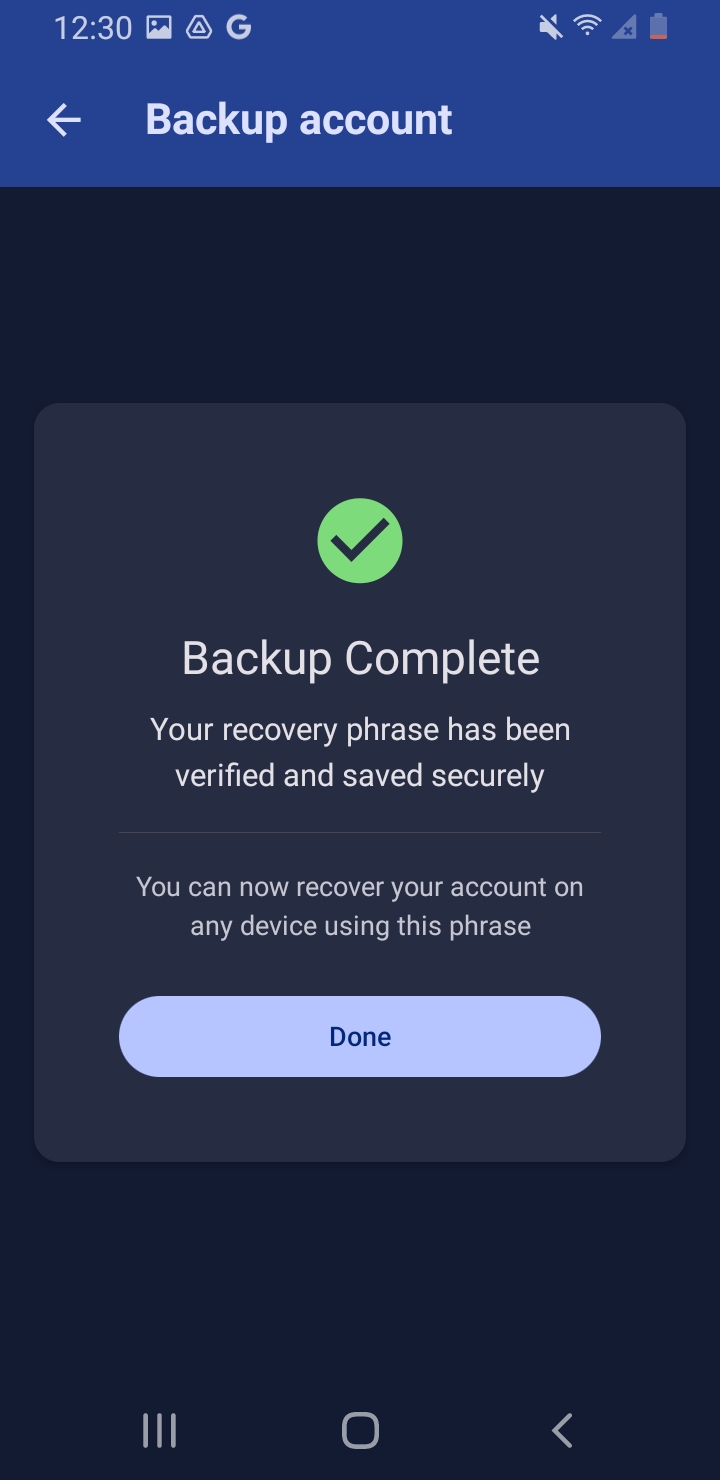 |
| Step 6 Post Backup Account Creation This is just to show what subsequent account creation will show. You'll notice the "Backup" section at the bottom of the Confirm screen. It will show the public key of the account that the backup was created with, so you can reference it and know which backup phrase to use. | 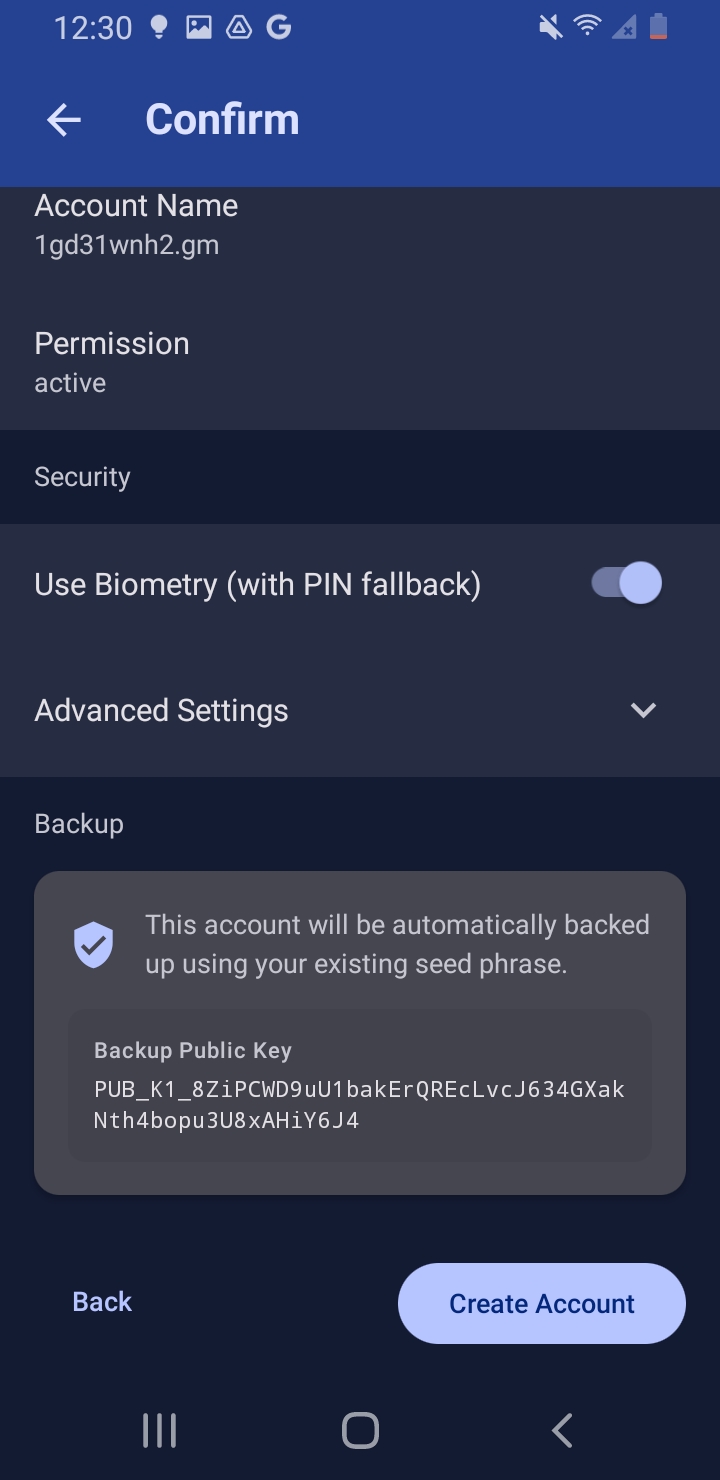 |
If you have any questions or concerns, please feel free to reach out to us at support@greymass.com
Was this article helpful?
That’s Great!
Thank you for your feedback
Sorry! We couldn't be helpful
Thank you for your feedback
Feedback sent
We appreciate your effort and will try to fix the article